
Media Center File Naming
Last updated: July 2026.
Organizing a media library seems simple until your media manager identifies the wrong movie, separates episodes incorrectly, or ignores artwork and subtitles that are sitting right beside the video. Most of these problems aren't caused by bugs but ambiguity. Media managers can only identify content based on the information they're given, and filenames and folder structures are the first clues they have.
Over the years, Plex, Jellyfin, Emby, Kodi, and similar media center software have largely converged on a common set of naming conventions. None of them formalized an official standard, and each still supports its own collection of legacy formats and edge cases, yet the overlap between them is significant.
The goal of this guide is to focus on that overlap.
Rather than documenting every supported filename variation, this guide distills the conventions that work consistently across nearly every modern media manager. Following these patterns improves automatic metadata matching today while making it far easier to migrate between applications in the future.
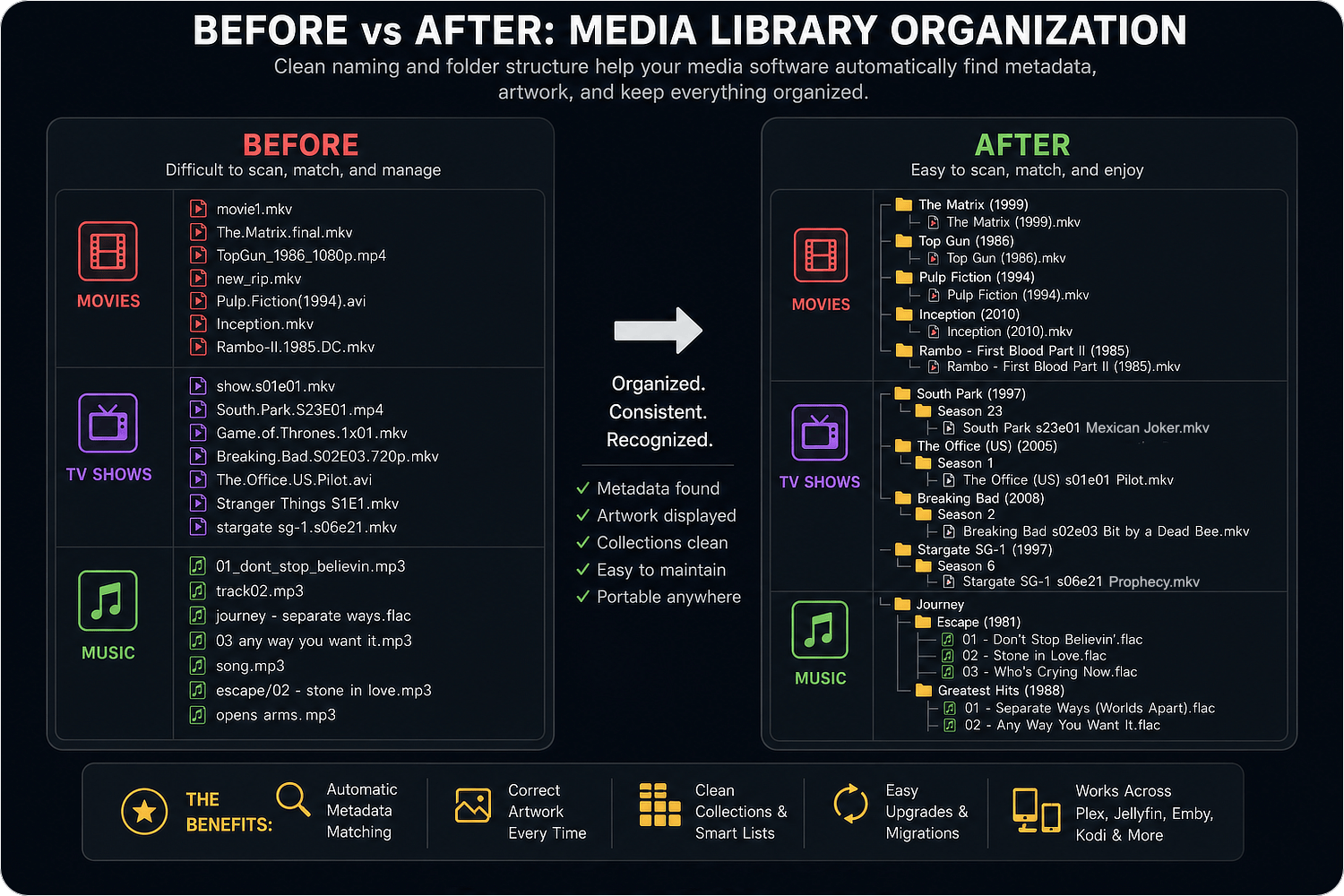
What follows is a distillation of the documentation and direct experience with the software to produce a best practices list. This guide combines the official documentation for Plex, Jellyfin, Emby, Kodi, Sonarr, Radarr, and related projects into a single set of practical recommendations. Rather than documenting every supported naming variation, it focuses on the conventions that work consistently across modern media managers.
Individual applications occasionally support additional syntax, but the examples below represent the greatest common denominator. Most clients have secondary structures/formats they accept as well, but there is little overlap in those so I have excluded them from this post.
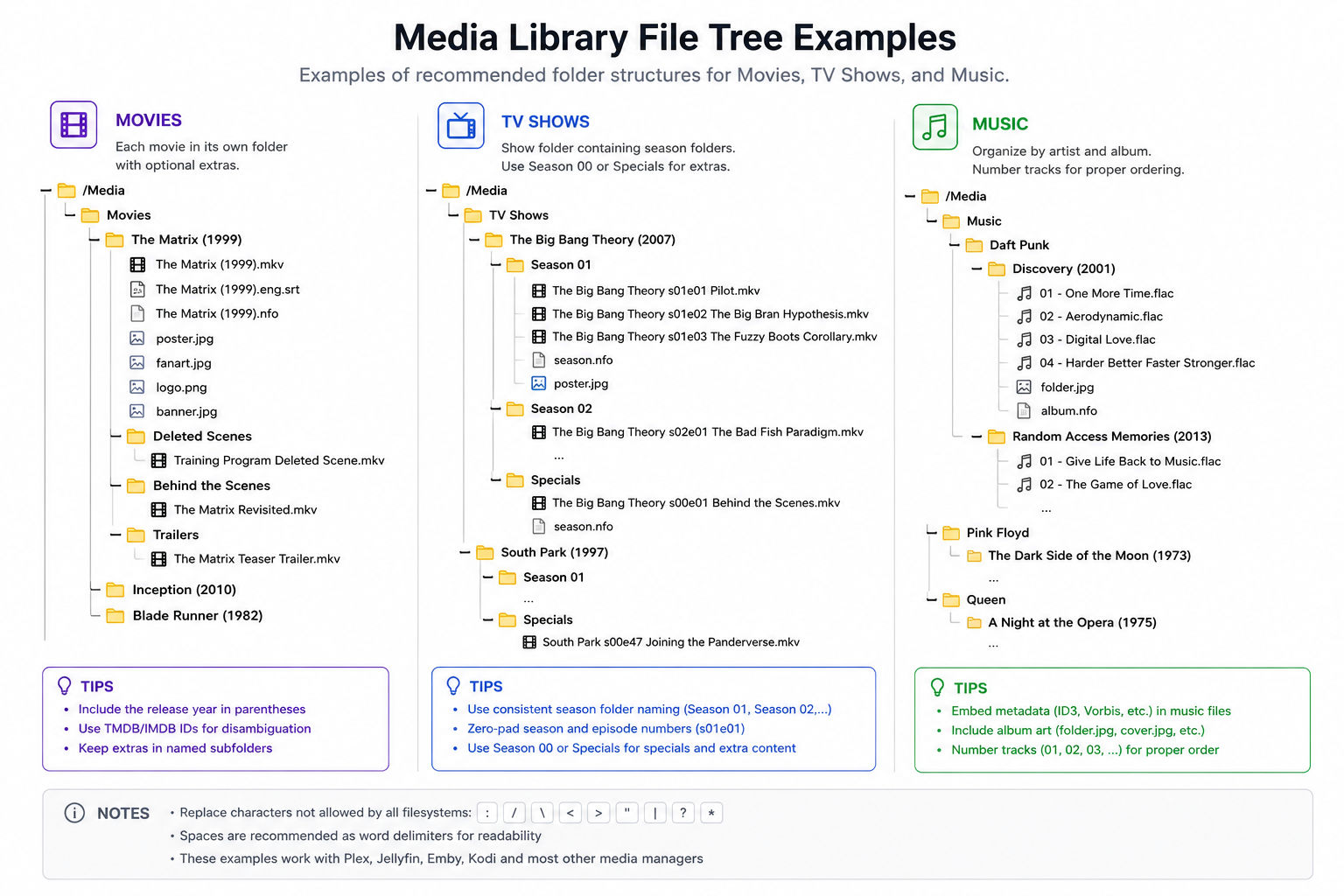
Cheat Sheet
Just need the basics? The examples below are enough to build a library that works reliably with nearly every modern media manager. The remainder of this guide explains why these conventions work and covers less common edge cases.
Movies
Movie Name (2025)/
├── Movie Name (2025).mkv
├── Movie Name (2025).eng.srt
├── Movie Name (2025).nfo
├── poster.jpg
├── fanart.jpg
├── Trailers/
│   └── Official Trailer.mkv
└── Featurettes/
    └── Behind the Scenes.mkv
Shows
Show Name (2025)/
├── poster.jpg
├── fanart.jpg
├── Season 1/
│   ├── Show Name s01e01 Pilot.mkv
│   ├── Show Name s01e01 Pilot.nfo
│   ├── Show Name s01e01 Pilot-thumb.jpg
│   ├── Show Name s01e02.mkv
│   └── poster.jpg
└── Specials/
    └── Show Name s00e01 Holiday Special.mkv
Music
Artist Name/
└── Album Name/
    ├── 01 - Song Name.flac
    ├── 02 - Another Song.flac
    ├── Artist Name - Album Name.nfo
    ├── cover.jpg
    ├── fanart.jpg
    └── disc.png
Naming Conventions
Movies
Movies are the simplest media type to organize, but they're also where consistency pays the greatest dividends. A dedicated directory gives your media manager a predictable location for artwork, subtitles, metadata, alternate editions, and extras while eliminating much of the ambiguity that comes from similarly named files.
For that reason, modern media managers organize movies using the same basic structure: a directory named after the movie, which contains a video file with that same base name.
Reserved filesystem characters such as :, /, and \ should be replaced with safe alternatives because they are interpreted as path separators on one or more operating systems. While many examples online use periods or dashes as delimiters, modern media managers have no trouble with spaces, so I prefer the more readable format used throughout this guide. Capitalization is generally not important.
Collections, franchises, and box sets rarely require any special organization. Modern media managers typically build them automatically from metadata rather than folder structure, so there is usually no need to organize them manually.
Format: /Movie Name (Release Year)/Movie Name (Release Year).ext
Standard examples:
/The Matrix (1999)/The Matrix (1999).ext
/Rambo - First Blood Part II (1985)/Rambo - First Blood Part II (1985).ext
/R.I.P.D. (2013)/R.I.P.D. (2013).ext
Other examples that usually work:
Pulp Fiction (1994).ext [no containing folder]
Inception.ext [no containing folder, no year]
Captain-America-The-Winter-Soldier-2014.ext [no containing folder, whitespace replaced with dashes]
Disambiguation:
Movie titles are reused fairly often. Remakes, reboots, foreign films, documentaries, and unrelated productions frequently share identical names. This is the first thing that breaks large libraries. "Broken" has been used as a movie title more than 30 times, and once your collection grows beyond a few hundred movies, duplicate titles stop being rare. Including the release year removes most of that ambiguity and dramatically improves automatic matching.
When multiple films still cannot be distinguished by title and year alone, most modern media managers also recognize identifiers from metadata providers such as TMDB and IMDB.
Format: /Movie Name (Release Year)/Movie Name (Release Year) {source-xxxxxxx}.ext
/Going the Distance (2004)/Going the Distance (2004) {tmdb-19423}.ext
/Going the Distance (2010)/Going the Distance (2010) {imdb-tt1322312}.ext
Multiple Versions
Alternate editions introduce a different kind of ambiguity. A theatrical release, director's cut, extended edition, and 4K remaster may all represent the same movie while remaining distinct versions that users want to preserve.
Most media managers therefore support edition tags that allow multiple releases to coexist within the same movie directory. Support varies slightly between applications, but the following syntax has become the most widely recognized.
Format: Movie Name (Release Year) {edition-Edition Name}.ext
Standard examples:
/Blade Runner (1982)/Blade Runner (1982).ext
/Blade Runner (1982)/Blade Runner (1982) {edition-Director's Cut}.ext
/Blade Runner (1982)/Blade Runner (1982) {edition-4K}.ext
Other possible syntax examples:
For older libraries, you'll also encounter a variety of legacy naming schemes that encode edition information directly into the filename.
/300 (2006)/300 (2006) - 1080p.ext
/300 (2006)/300 (2006) - 4K.ext
/300 (2006)/300 (2006) - 720p.ext
/300 (2006)/300 (2006) - extended edition.ext
/300 (2006)/300 (2006) - directors cut.ext
/300 (2006)/300 (2006) - 3D.hsbs.ext
Split Video Files
Although uncommon today, older DVD and LaserDisc releases frequently split long films across multiple discs. Rather than treating these as unrelated videos, media managers recognize naming conventions that indicate the files belong to a single movie and should be played sequentially.
Format: /Movie Name (Release Year)/Movie Name (Release Year) - [disc|part|cd|dvd|disk]X.ext (X is a numerical value)
Standard examples:
/Dune (2000)/Dune (2000) - disc1.ext
/Dune (2000)/Dune (2000) - disc2.ext
/Dune (2000)/Dune (2000) - disc3.ext
Extras
Featurettes, deleted scenes, interviews, trailers, and other supplemental material are organized separately from the main feature. Storing them in dedicated subdirectories allows media managers to associate the content with the correct movie while presenting it independently in the user interface.
The exact folder names vary slightly between applications, but the following categories are recognized by most modern media managers.
- Specials
- Shorts
- Scenes
- Featurettes
- Behind the Scenes
- Deleted Scenes
- Interviews
- Trailers
Standard examples:
/Caddyshack (1980)/Scenes/Golf Course Explosion.ext
/Caddyshack (1980)/Deleted Scenes/Bill Murray Playing.ext
Images
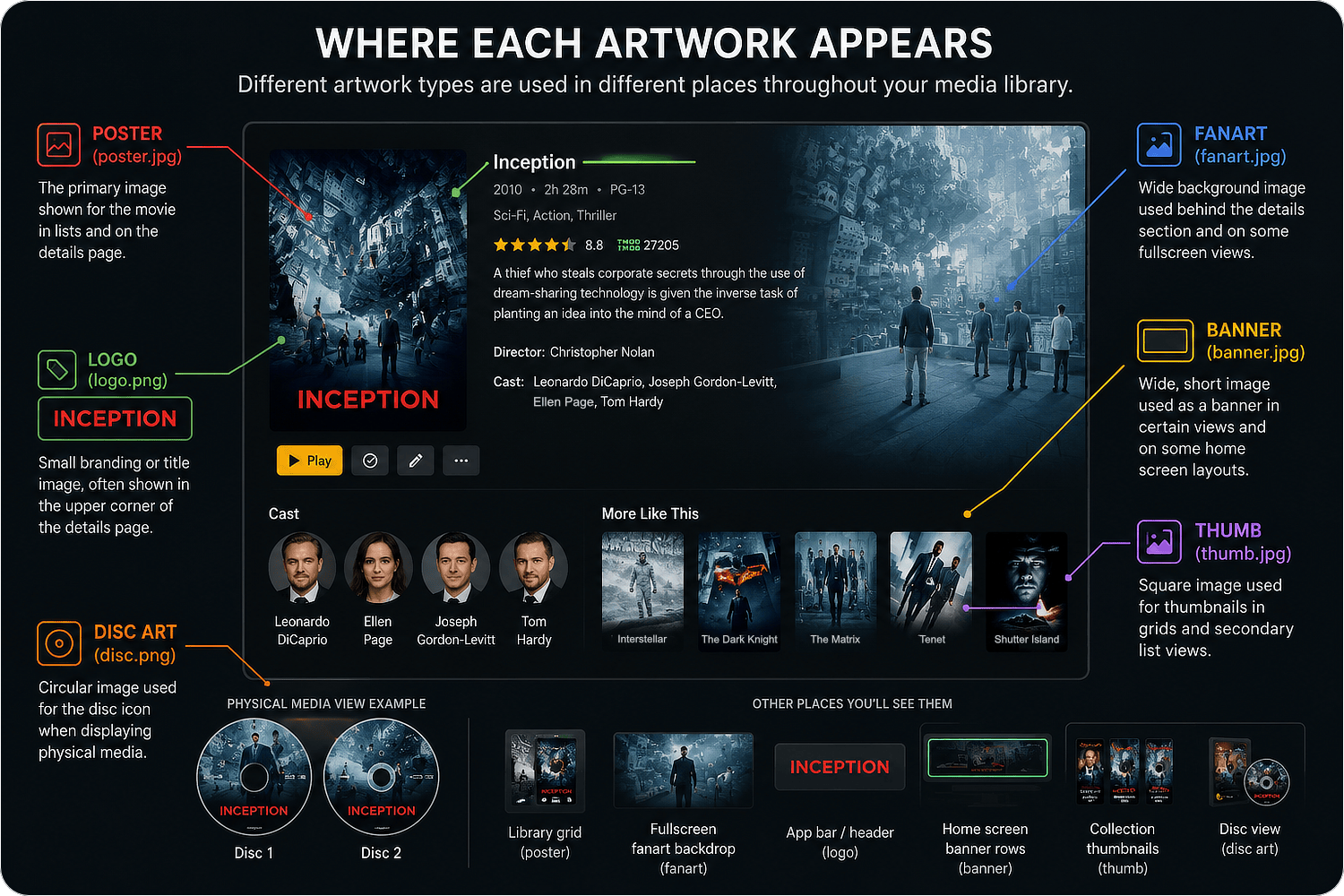
Artwork exists entirely to improve presentation. Posters, logos, fanart, banners, and thumbnails are what transform a directory of video files into something that feels like browsing a streaming service.
Most applications recognize several equivalent filenames for each artwork type. These aliases exist largely for historical compatibility, so you only need one filename from each category rather than every variation listed below.
| Image Type | Supported file names |
|---|---|
| Primary | {name}.ext |
| {name}-poster.ext | |
| {name}-cover.ext | |
| {name}-default.ext | |
| {name}-movie.ext | |
| folder.ext | |
| poster.ext | |
| cover.ext | |
| default.ext | |
| movie.ext | |
| Art | {name}-clearart.ext |
| clearart.ext | |
| Backdrop | backdrop.ext, backdropX.ext |
| fanart.ext, fanart-X.ext | |
| background.ext, background-X.ext | |
| art.ext, art-X.ext | |
| extrafanart (subfolder)/fanartX.ext | |
| Banner | {name}-banner.ext |
| banner.ext | |
| Disc | {name}-disc.ext |
| {name}-cdart.ext | |
| disc.ext | |
| cdart.ext | |
| Logo | {name}-logo.ext |
| logo.ext | |
| Thumb | {name}-thumb.ext |
| {name}-landscape.ext | |
| thumb.ext | |
| landscape.ext |
{name} represents the movie's name. X is a numerical value to allow for multiple instances of the type.
Metadata
Many media managers also support local metadata files. These .nfo files allow a library to preserve titles, descriptions, genres, ratings, artwork references, and other information independently of any online service.
This becomes particularly useful when maintaining custom metadata, working with obscure content, or ensuring a library remains portable between applications.
Format: /Movie Name (Release Year)/Movie Name (Release Year).nfo
Standard examples:
/Caddyshack (1980)/Caddyshack (1980).nfoSubtitles
Subtitles may be embedded directly into the video container or stored as separate files alongside the movie. Standalone subtitle files are most useful when maintaining multiple languages, forced subtitles, or alternate subtitle formats without modifying the video itself. The tradeoff is portability — embedded subtitles are easier to copy between locations since they're all contained in the same file as the video.
Media managers identify these files by matching the movie filename and appending language and optional behavior flags.
Format: /Movie Name (Release Year)/Movie Name (Release Year).[ISO-639-1/2B Language Code].[Optional Flag].ext
Standard examples:
/The Accountant (2016)/The Accountant (2016).eng.srt
/Star Wars (1977)/Star Wars (1977).eng.forced.srt
/Avatar (2009)/Avatar (2009).eng.default.srt
Multiple languages:
Movie Name (2020)/Movie Name (2020).eng.srt
Movie Name (2020)/Movie Name (2020).spa.srt
Movie Name (2020)/Movie Name (2020).jpn.ass
Shows
Show libraries can sometimes be more problematic to set up. A single series may span dozens of seasons, hundreds of episodes, specials, multi-part releases, alternate episode orders, and multiple metadata providers that don't always agree with one another. As a result, show naming conventions tend to be more structured than those for movies.
The underlying principles remain the same, however. Each series is stored within its own directory, with each season occupying a separate subdirectory beneath it. This gives media managers a predictable location for episodes, artwork, subtitles, and metadata while making season-level organization straightforward.
Episode and season numbers are traditionally zero-padded, although most media managers recognize either form. Padding produces more consistent filesystem ordering as season and episode counts grow. I also include episode titles whenever practical. They aren't required, but they make browsing the filesystem dramatically easier.
One additional complication is that different metadata providers occasionally disagree about episode ordering. Some series are cataloged by original air date, others by DVD release order, and some anime additionally support absolute episode numbering. If a correctly-named series still matches incorrectly, the episode ordering configured within the media manager is often the first thing worth checking.
The same filesystem caveats apply here as with movies.
Formats:
/Show Name (Release Year)/[Season XX|Specials]/Show Name sYYeZZ.ext/Show Name (Release Year)/[Season XX|Specials]/Show Name sYYeZZ Episode Name.ext(My Preferred)/Show Name (Release Year)/[Season XX|Specials]/Show Name YYxZZ.ext/Show Name (Release Year)/[Season XX|Specials]/Show Name YYxZZ Episode Name.ext
Standard examples:
/South Park (1997)/Specials/South Park s00e47 Joining the Panderverse.ext
/Yellowstone (2018)/Season 4/Yellowstone s04e02.ext
/The Big Bang Theory (2007)/Season 1/The Big Bang Theory s01e01 Pilot.ext
/Stargate SG-1 (1997)/Season 6/Stargate SG-1 06x21.ext
Other examples that usually work:
show name - S01E01 - Episode Name.ext
show name S01E01 Episode Name.ext
show-name_s01.e02.ext
show-name_s1e2.ext
show-name_1x02.ext
show-name_se1.ep2.ext
show-name-season1.episode2.ext
show name/any folder/S01E02.ext
show name/any folder/01.02 NameOfEpisode.ext
show name/season 1/02 NameOfEpisode.ext
show name/season 1/1-02 NameOfEpisode.ext
show name/season 1/episode 02 - NameOfEpisode.ext
show name/season 1/show name - S01E01 - Episode Name.ext
Multiple Episode Files
Some broadcasts combine two or more standard-length episodes into a single video. Rather than treating the file as a duplicate or incorrectly assigning it to only one episode, media managers recognize filename patterns that indicate a continuous range of episodes.
The preferred approach is to specify the first and last episode represented by the file.
Formats:
/Show Name (Release Year)/[Season XX|Specials]/Show Name sYYeZZ-eTT.ext/Show Name (Release Year)/[Season XX|Specials]/Show Name sYYeZZ-eTT Episode Names.ext/Show Name (Release Year)/[Season XX|Specials]/Show Name YYxZZ-xTT.ext/Show Name (Release Year)/[Season XX|Specials]/Show Name YYxZZ-xTT Episode Names.ext
Standard examples:
/Seinfeld (1989)/Season 3/Seinfeld s03e17-e18.ext
/Seinfeld (1989)/Season 3/Seinfeld s03e17-e18 The Boyfriend.ext
/Seinfeld (1989)/Season 3/Seinfeld 03x17-x18 The Boyfriend.ext
Split Episode Files
The opposite situation occasionally appears as well. Longer specials or older releases may divide a single episode across multiple files, particularly when sourced from DVD or broadcast recordings.
In these cases, the filename indicates both the episode number and the individual part so media managers can present the content as a single episode while still locating every file.
Formats:
/Show Name (Release Year)/[Season XX|Specials]/Show Name sYYeZZ - [disc|part|cd|dvd|disk]X.ext/Show Name (Release Year)/[Season XX|Specials]/Show Name sYYeZZ Episode Name - [disc|part|cd|dvd|disk]X.ext/Show Name (Release Year)/[Season XX|Specials]/Show Name YYxZZ - [disc|part|cd|dvd|disk]X.ext/Show Name (Release Year)/[Season XX|Specials]/Show Name YYxZZ Episode Name - [disc|part|cd|dvd|disk]X.ext
Standard examples:
/South Park (1997)/Specials/South Park s00e47 Joining the Panderverse - part1.ext
/Yellowstone (2018)/Season 4/Yellowstone s04e02 - part1.ext
/The Big Bang Theory (2007)/Season 1/The Big Bang Theory s01e01 Pilot - part1.ext
/Stargate SG-1 (1997)/Season 6/Stargate SG-1 06x21 - part1.ext
Specials
Specials occupy an unusual place within most show libraries. Holiday episodes, behind-the-scenes features, web exclusives, pilots, and other content often fall outside the normal seasonal structure.
Rather than inventing separate directory layouts, most media managers simply assign these episodes to season zero. Once placed there, they follow the same naming conventions as every other episode.
Formats:
/Show Name (Release Year)/[Season 0|Specials]/Show Name s00eXX.ext/Show Name (Release Year)/[Season 0|Specials]/Show Name s00eXX Episode Name.ext/Show Name (Release Year)/[Season 0|Specials]/Show Name 00xXX.ext/Show Name (Release Year)/[Season 0|Specials]/Show Name 00xXX Episode Name.ext
Images
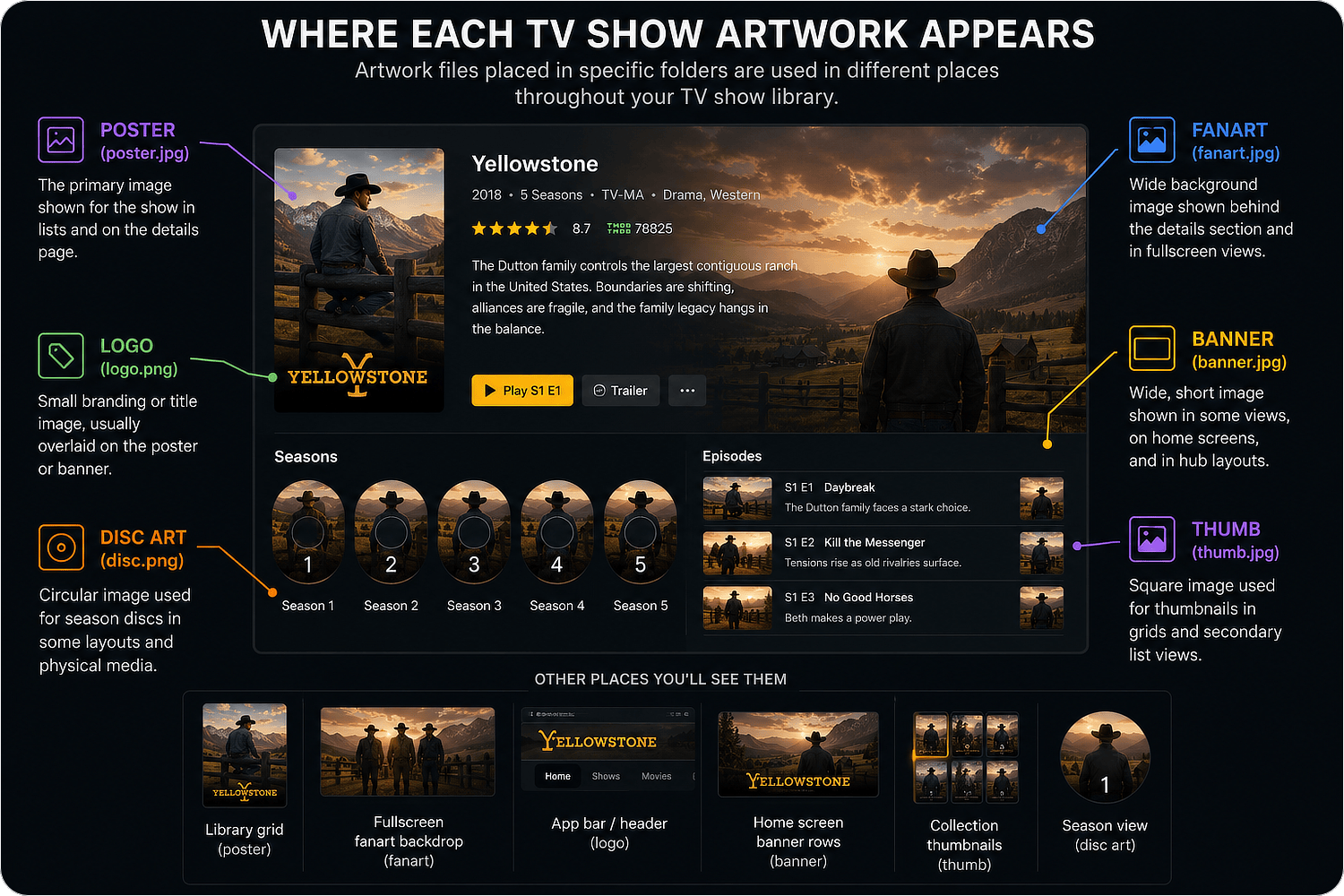
Artwork serves the same purpose for shows as it does for movies, but it operates at multiple levels. A series may have its own poster and fanart, each season can have unique artwork, and individual episodes may also include thumbnails or other supporting images.
Because of that hierarchy, the location of an image file determines what it represents just as much as its filename.
Most applications recognize several equivalent filenames for each artwork type. As with movies, these are aliases rather than separate artwork categories, so only one filename from each group is required.
| Image Type | Supported file names |
|---|---|
| Primary | {name}.ext |
| {name}-poster.ext | |
| {name}-cover.ext | |
| {name}-default.ext | |
| {name}-show.ext (series folder only) | |
| folder.ext | |
| poster.ext | |
| cover.ext | |
| default.ext | |
| show.ext (series folder only) | |
| Art | {name}-clearart.ext |
| clearart.ext | |
| Backdrop | backdrop.ext, backdropX.ext |
| fanart.ext, fanart-X.ext | |
| background.ext, background-X.ext | |
| art.ext, art-X.ext | |
| extrafanart (subfolder)/fanartX.ext | |
| Banner | {name}-banner.ext |
| banner.ext | |
| Disc | {name}-disc.ext |
| {name}-cdart.ext | |
| disc.ext | |
| cdart.ext | |
| Logo | {name}-logo.ext |
| logo.ext | |
| Thumb | {name}-thumb.ext |
| {name}-landscape.ext | |
| thumb.ext | |
| landscape.ext |
{name} represents the movie's name. X is a numerical value to allow for multiple instances of the type.
Metadata
Online metadata providers generally supply episode titles, descriptions, air dates, cast information, and artwork automatically. Local .nfo files provide a way to preserve or override that information when needed.
Depending on the media manager, metadata may exist at multiple levels. A series can have its own metadata, each season may include a season.nfo, and individual episodes can store their own information alongside the video file.
This approach is particularly useful for home media, rare releases, custom metadata, or situations where online databases contain incomplete or incorrect information.
Episode Formats:
/Show Name (Release Year)/[Season XX|Specials]/Show Name sYYeZZ.nfo/Show Name (Release Year)/[Season XX|Specials]/Show Name sYYeZZ Episode Name.nfo/Show Name (Release Year)/[Season XX|Specials]/Show Name YYxZZ.nfo/Show Name (Release Year)/[Season XX|Specials]/Show Name YYxZZ Episode Name.nfo
Standard examples:
/South Park (1997)/Specials/South Park s00e47 Joining the Panderverse.nfo
/Yellowstone (2018)/Season 4/Yellowstone s04e02.nfo
/The Big Bang Theory (2007)/Season 1/The Big Bang Theory s01e01 Pilot.nfo
/Stargate SG-1 (1997)/Season 6/Stargate SG-1 06x21.nfo
Music/Music Videos
Music libraries behave differently from movie and show libraries. Whereas video collections rely heavily on filenames and directory structures for identification, music libraries primarily identify content using embedded metadata such as ID3 tags, Vorbis Comments, and FLAC metadata.
That doesn't make folder organization unimportant. A consistent directory structure still makes collections easier to browse, simplifies library maintenance, and provides a predictable layout for artwork and supplemental files. It also makes moving between music players and media managers significantly easier. Again, the same reserved character filesystem behaviors apply here.
Unlike video, however, a perfectly named file with incorrect embedded metadata will often still be identified incorrectly.
Most media managers organize music around artists and albums, making that hierarchy the closest thing to a universal convention.
Format: /Artist Name/Album Name/XX - Song Name.ext
Standard examples:
/Journey/Escape/02 - Don't Stop Believin'.extMusic Videos follow the same organization. Although they aren't usually distributed as part of an album, associating them with the album from which the song originated provides a consistent structure and allows media managers to group related content naturally.
Images
Artwork serves a familiar purpose regardless of media type: it transforms a collection of files into something that's enjoyable to browse. Album covers, artist logos, fanart, banners, and disc artwork provide the visual context that music libraries use throughout their interfaces.
Unlike dedicated music players, media center applications frequently support many of the same artwork conventions used for movies and shows. This makes mixed media libraries much more consistent while allowing artwork to be shared across multiple applications.
As with the other media types, the filenames below are aliases rather than separate requirements. One filename from each group is sufficient.
| Image Type | Supported file names |
|---|---|
| Primary | folder.ext |
| poster.ext | |
| cover.ext | |
| default.ext | |
| Art | clearart.ext |
| Backdrop | backdrop.ext, backdropX.ext |
| fanart.ext, fanart-X.ext | |
| background.ext, background-X.ext | |
| art.ext, art-X.ext | |
| extrafanart (subfolder)/fanartX.ext | |
| Banner | banner.ext |
| Disc | disc.ext |
| cdart.ext | |
| Logo | logo.ext |
| Thumb | thumb.ext |
| landscape.ext |
{name} represents the movie's name. X is a numerical value to allow for multiple instances of the type. Again, these filenames are interchangeable aliases.
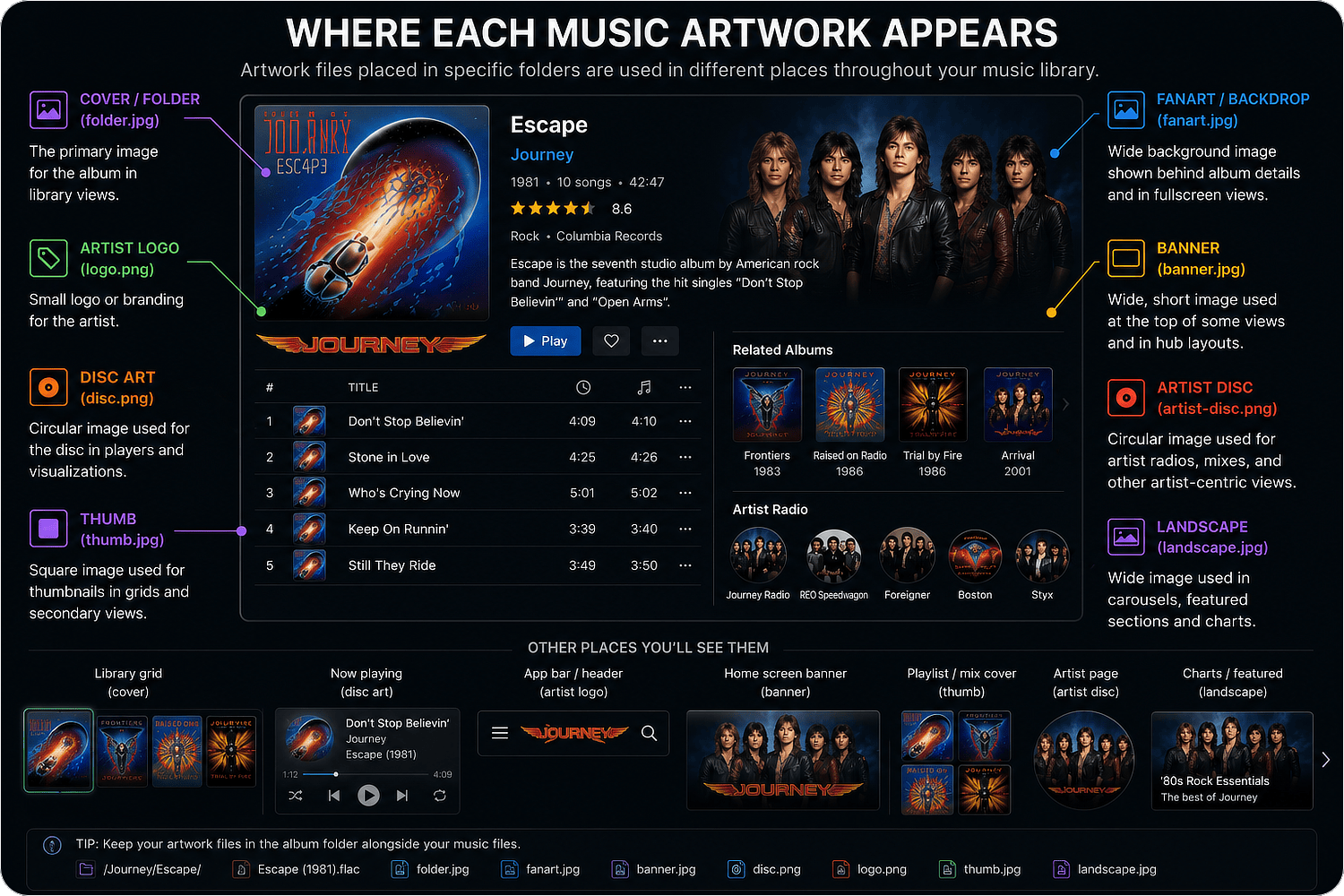
Metadata
Song titles, artists, albums, track numbers, genres, release dates, composers, disc numbers, lyrics, replay gain information, and artwork are typically stored directly within the audio file itself. Those embedded tags remain with the file regardless of where it's copied or how it's renamed.
Some media managers also support external .nfo files for album-level metadata. These provide additional descriptive information without modifying the audio files themselves, although they are generally supplemental rather than the primary source of metadata.
Format: /Artist Name/Album Name/Artist Name - Album Name.nfo
Standard examples:
/Journey/Escape/Journey - Escape.nfoOther Media Types
Not every type of media has developed a widely accepted naming convention.
Home videos, personal photos, audiobooks, podcasts, educational content, and miscellaneous videos are often handled differently by every application. Some media managers treat them as simple files, while others implement software-specific directory structures or metadata systems.
Because there is much less agreement across applications, consistency within your own collection becomes more valuable than following any particular convention. Choosing a simple organizational structure and using it consistently will usually produce better long-term results than chasing application-specific recommendations.
Common Mistakes
When automatic identification fails, the underlying problem is usually surprisingly simple. Media managers are generally quite forgiving, but they still depend on having enough information to distinguish one piece of content from another.
The most common issues are:
- Missing release year for movies or series with duplicate titles
- Missing season or episode numbers in show libraries
- Typographical errors in the title
- Incorrect episode numbering, such as DVD order versus original air order
- Unusual directory structures that prevent related files from being associated correctly
- Multiple unrelated movies stored in the same directory
- Forgetting to refresh or rescan the library after renaming files
When a library continues matching incorrectly despite following the conventions above, adding an explicit TMDB or IMDB identifier usually resolves the remaining ambiguity.
Conclusions
It's easy to become preoccupied with finding the "perfect" naming convention. In reality, modern media managers support an enormous number of filename variations, many of them preserved for compatibility with software that no longer exists.
What matters isn't choosing the one true format but rather choosing a convention that remains portable.
The recommendations in this guide weren't selected because they're unique to Plex, Jellyfin, Emby, Kodi, or any other application. They were selected because they represent the practical intersection of those ecosystems. A library organized this way can move between media managers with little or no renaming, reducing the amount of maintenance required over time.
If you're starting a new collection, adopting a consistent structure from the beginning is one of the simplest investments you can make. If you already have an established library, don't feel compelled to rename everything manually. Tools such as FileBot, TinyMediaManager, Sonarr, Radarr, and many media managers themselves can gradually reorganize an existing collection into these conventions.