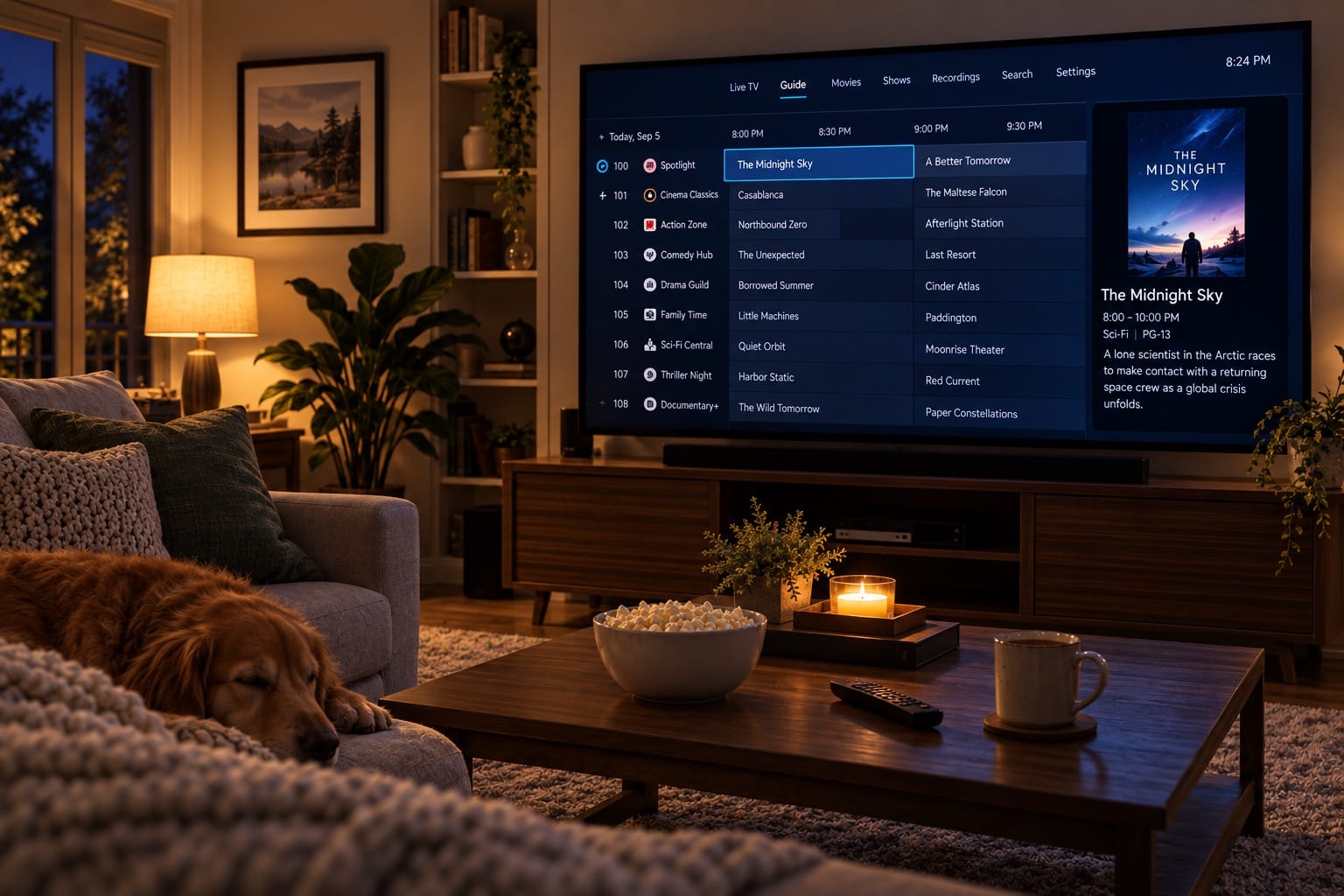
Meet Moirai: Turn Your Media Library Into TV Channels
A folder full of favorite movies still leaves you with a decision: what do you want to watch?
Sometimes choosing is part of the fun. Other times, you just want to turn on the television and settle in to whatever’s already playing. A familiar episode halfway through can be more inviting than half an evening spent browsing posters.
Moirai provides that kind of viewing for a personal media collection. It turns your movies, television shows, and music videos into personal TV channels. You choose the material and give the schedule as much attention as you like, from a simple shuffle to a carefully arranged day. Moirai works out what plays when.
Maybe it’s a channel devoted to a favorite sitcom, a weekend movie station, or a music-video channel to put on while cooking. Those are just a few examples of what could be built with your own media library.
The screenshots throughout this post use a simulated library with fictional titles. Some deliberately show warnings so you can see how Moirai flags a schedule that needs attention.
Your Collection, With Something Already On
Moirai is self-hosted: you run it on a computer or server you control with access to your media files. It's managed through a web browser, and you watch its channels through a compatible player or media server, such as TiviMate, Channels DVR, or Jellyfin.
The channels stream over your local network using IPTV, and your own media files supply the programming. Behind the scenes, Moirai indexes your files and schedules what should play when. ErsatzTV Next handles transcoding and streaming the videos to viewers.
For the person watching, using it is simple: open a channel and see what’s on.
Start With the Files You Have
The first building block is a library, which tells Moirai where to find your media. Once it scans that location, you can browse the indexed titles, inspect their details, and use them in your programming.
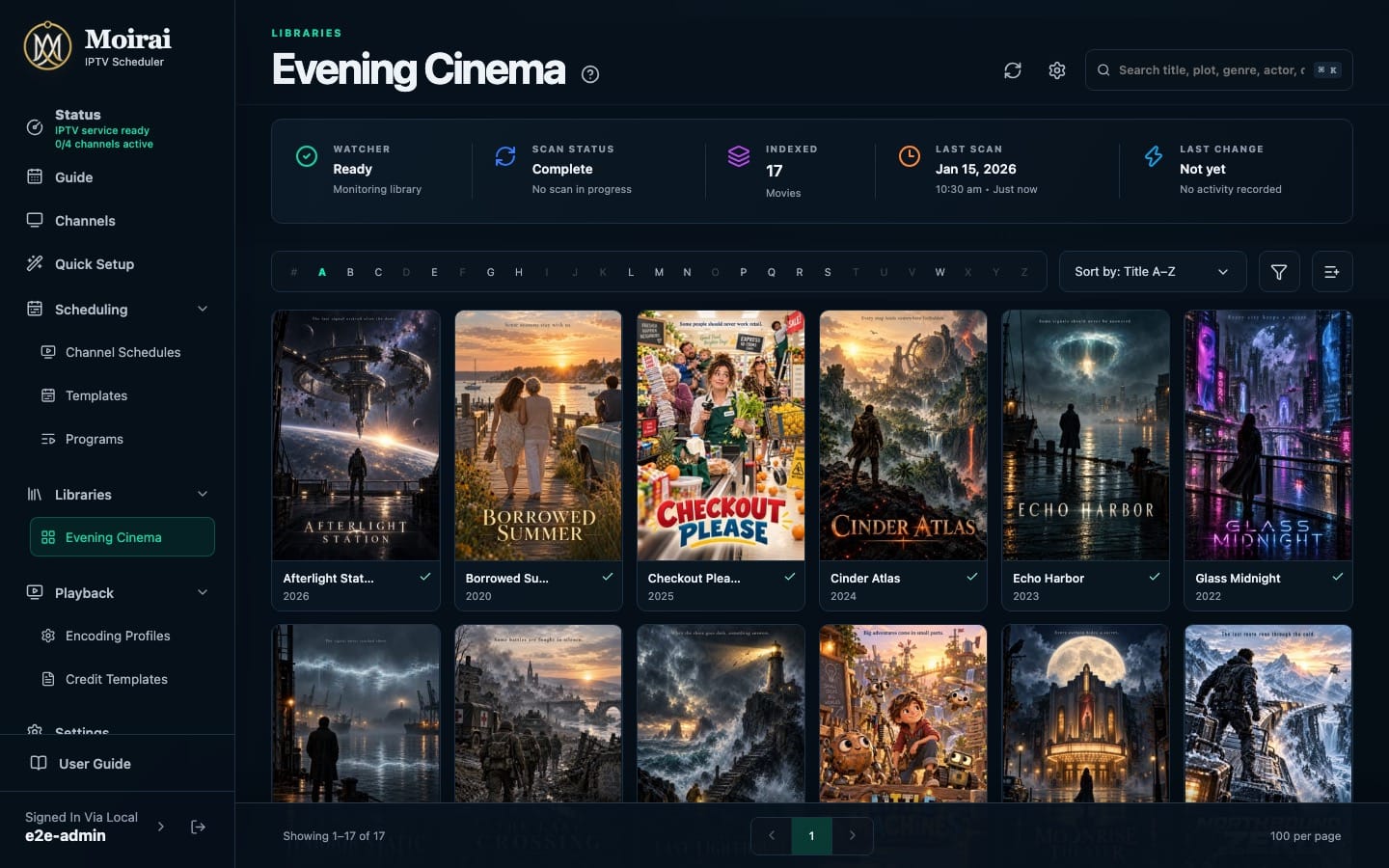
Moirai reads files from folders it can access. If you already use Plex, Jellyfin, or Emby, Moirai needs access to the underlying files; it doesn’t stream them through those services. Existing Kodi-compatible NFO files (small companion files containing information about a movie or episode) can provide descriptive details. A future update will support interfacing directly with the media library management software.
After the initial scan, Moirai watches for ordinary additions and changes. You can also manually scan again to pick up changes sooner.
A First Channel Without Learning Every Setting
Quick Setup is the shortest route from a library to a channel. It offers starting points for movies, shows, and music videos, then walks through four steps: choose a library, choose the programming, name the channel, and review the result.
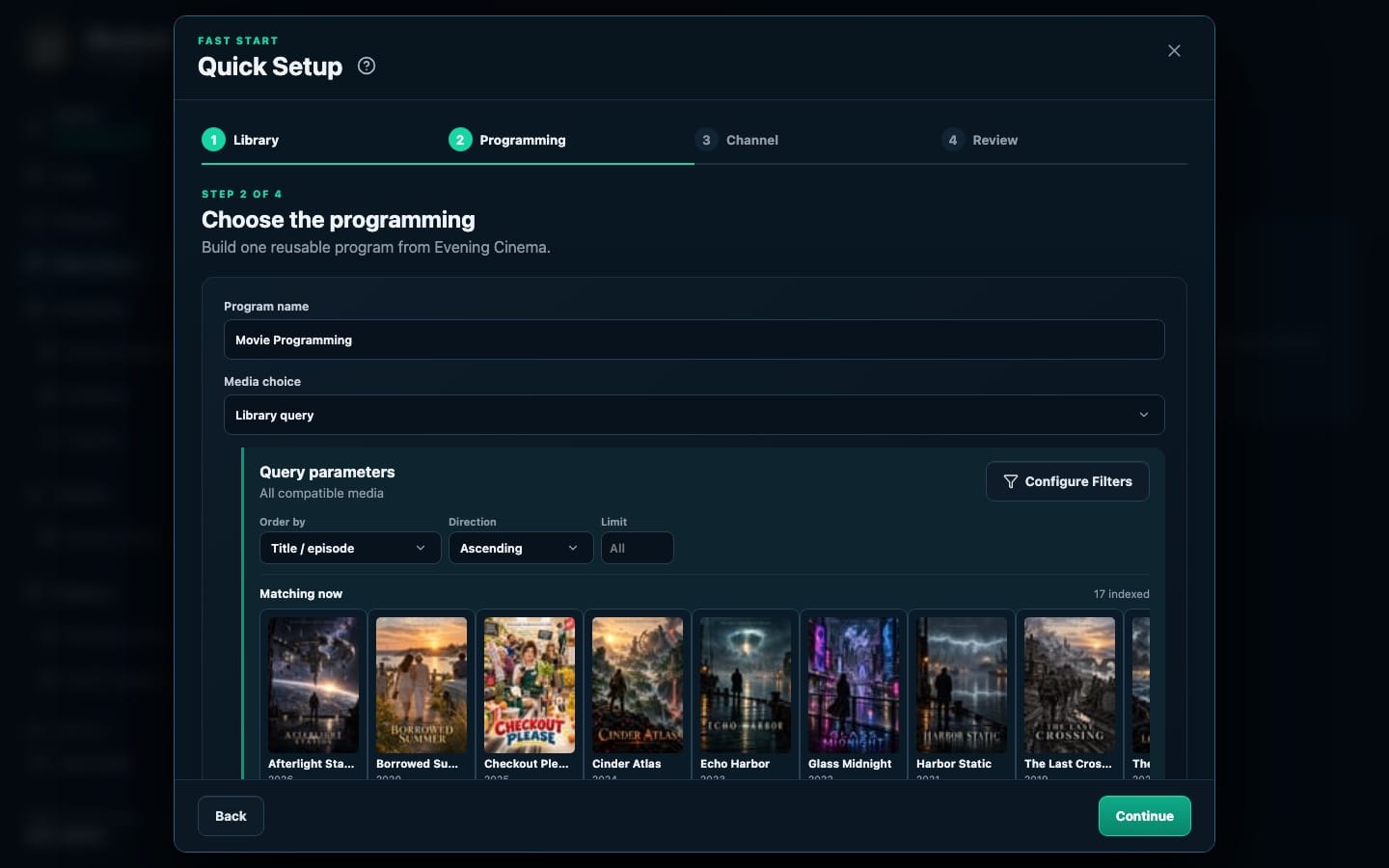
A single movie channel is a good place to begin. Select a few movies or filter your library by genre, choose their playback order, give the channel a name and number, and review the sample day. Once the media is indexed and the channel is ready, you can connect your player.
You can return to the full editors later. Quick Setup creates the same underlying pieces those editors use, so you can refine your first channel as you learn the software.
Decide What Plays, Then When
The full scheduling tools separate two decisions that are easy to mix together: which media belongs in the lineup and when it should appear.
A Program, in Moirai's terminology, answers the first question. It is a reusable selection of content and rules for playing it. For example, “Evening Movies” could shuffle a chosen collection without repeating a film until every movie in the selection has played. A television Program could follow episodes in order. You can hand-pick titles or use filters that automatically include matching media as your library changes.
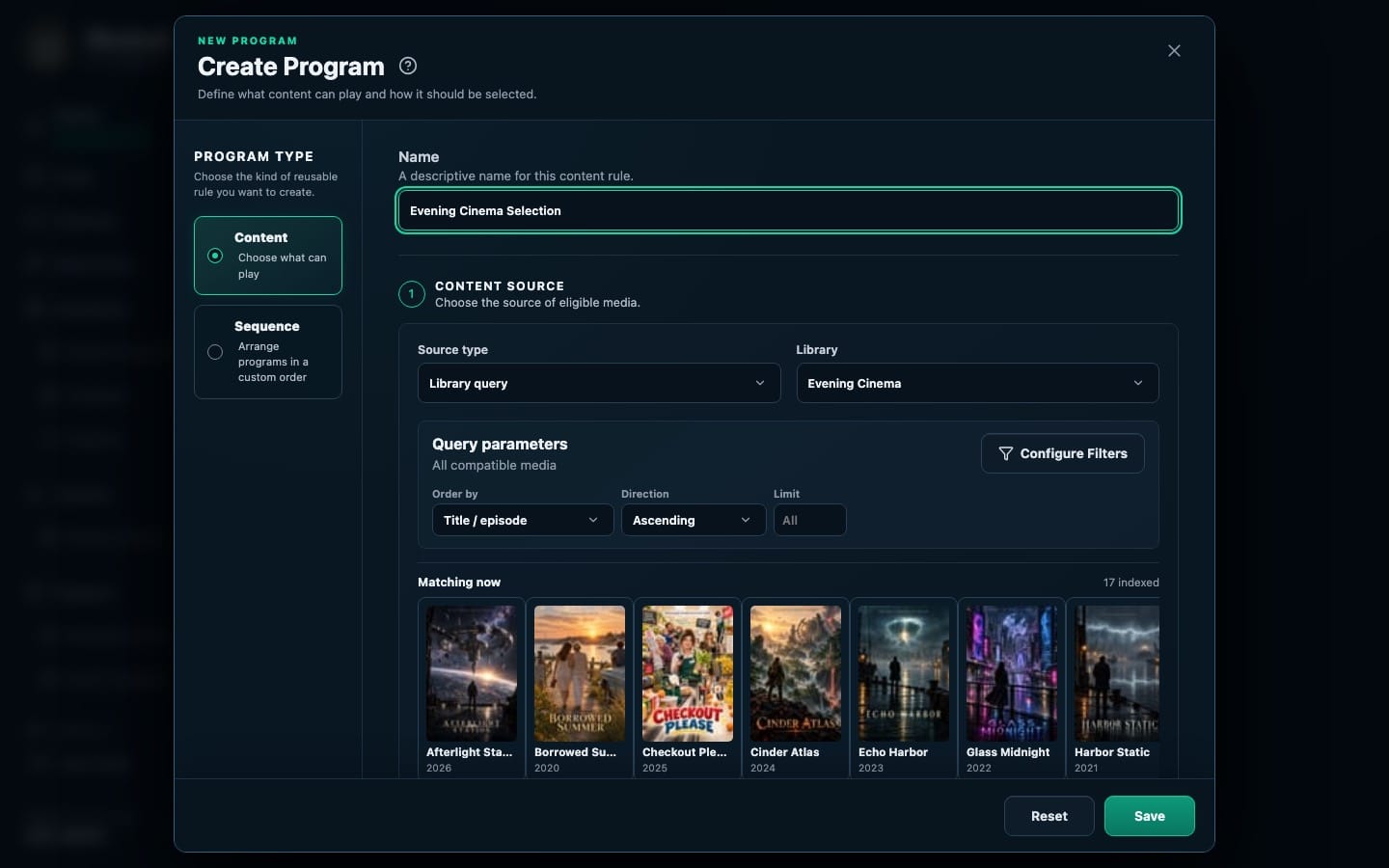
A Template answers the second question. It divides a day into time slots and assigns a Program to each one. An example day might put sitcom reruns in the morning, movies in the afternoon, and a feature film at night. You can reuse that daily structure instead of arranging every day separately.
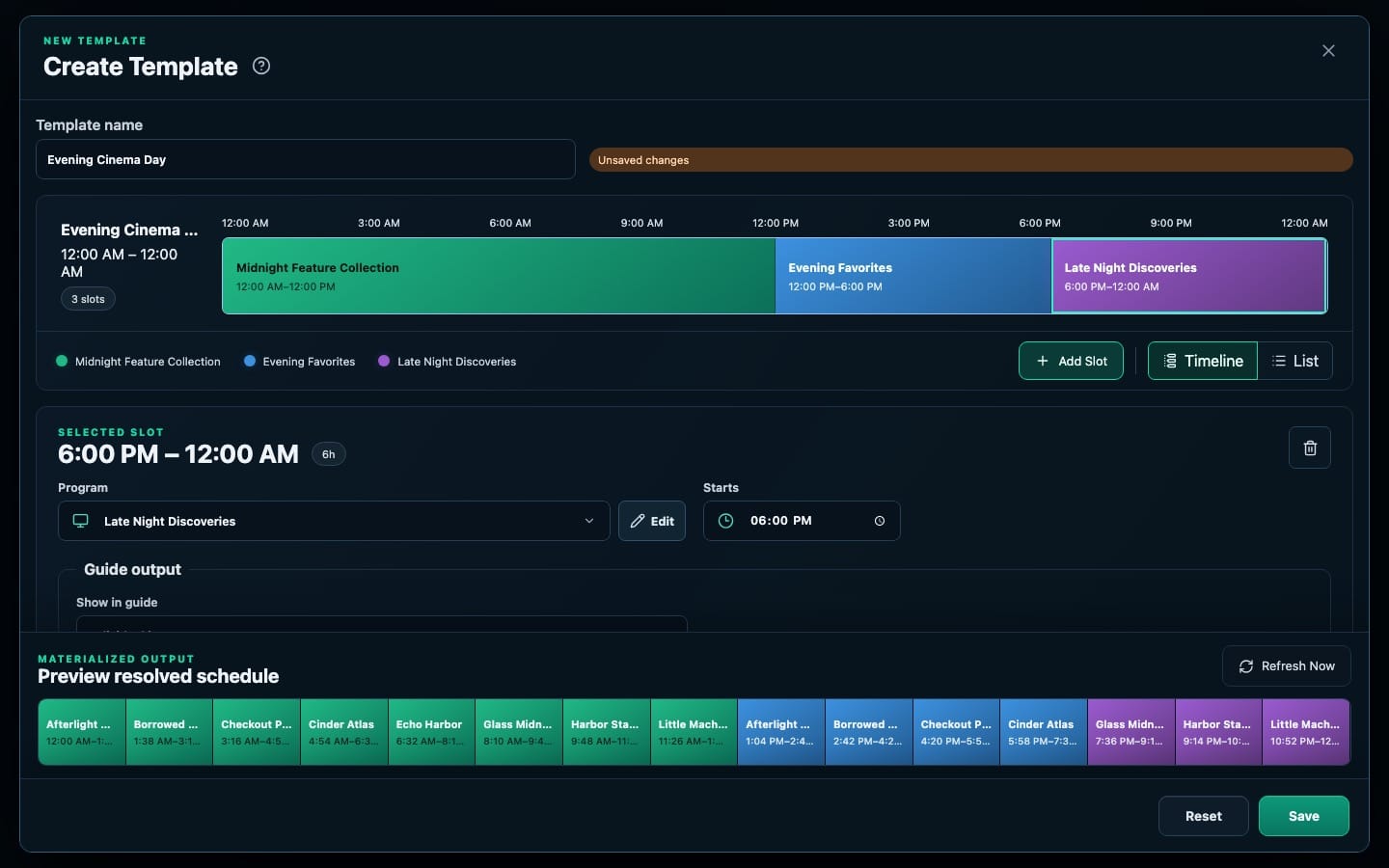
The preview shows how actual video lengths fit the schedule. A movie might still be playing when the next slot is supposed to begin. Moirai lets you favor finishing it or keeping the next slot’s start time. You can also require items to fit within the available time and configure filler for gaps. The preview shows how those choices work together.
The simplest approach is to start with one Program filling the whole day. The extra controls become useful when you want to mix things up.
Give Weekends Their Own Lineup
A Channel Schedule connects those daily Templates to a particular channel. It starts with a base Template for ordinary programming. Optional rules can bring in different programming on weekends, particular hours or dates, or even recurring seasons.
For example, you could keep a general movie lineup during the week and give weekend evenings their own selection. You don't have to duplicate the entire schedule just to change a few hours.
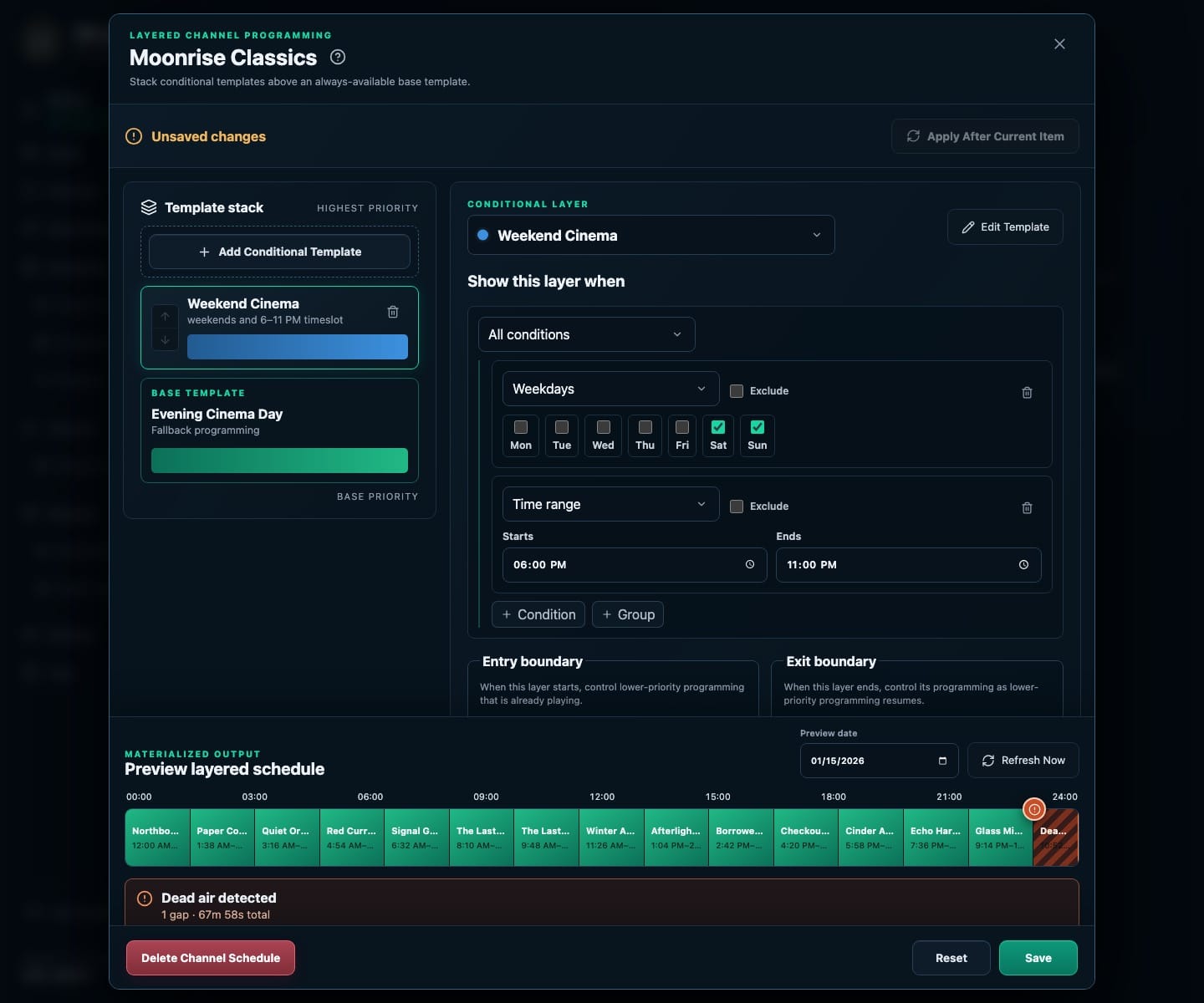
The colored blocks show which Program supplies each part of the lineup. A lineup can look sensible and still need adjustments once actual movie lengths are involved. Checking the preview is part of getting the channel ready. The orange Dead air detected message in this example is practical feedback: the preview has found time with nothing scheduled to play.
Put It on the Television
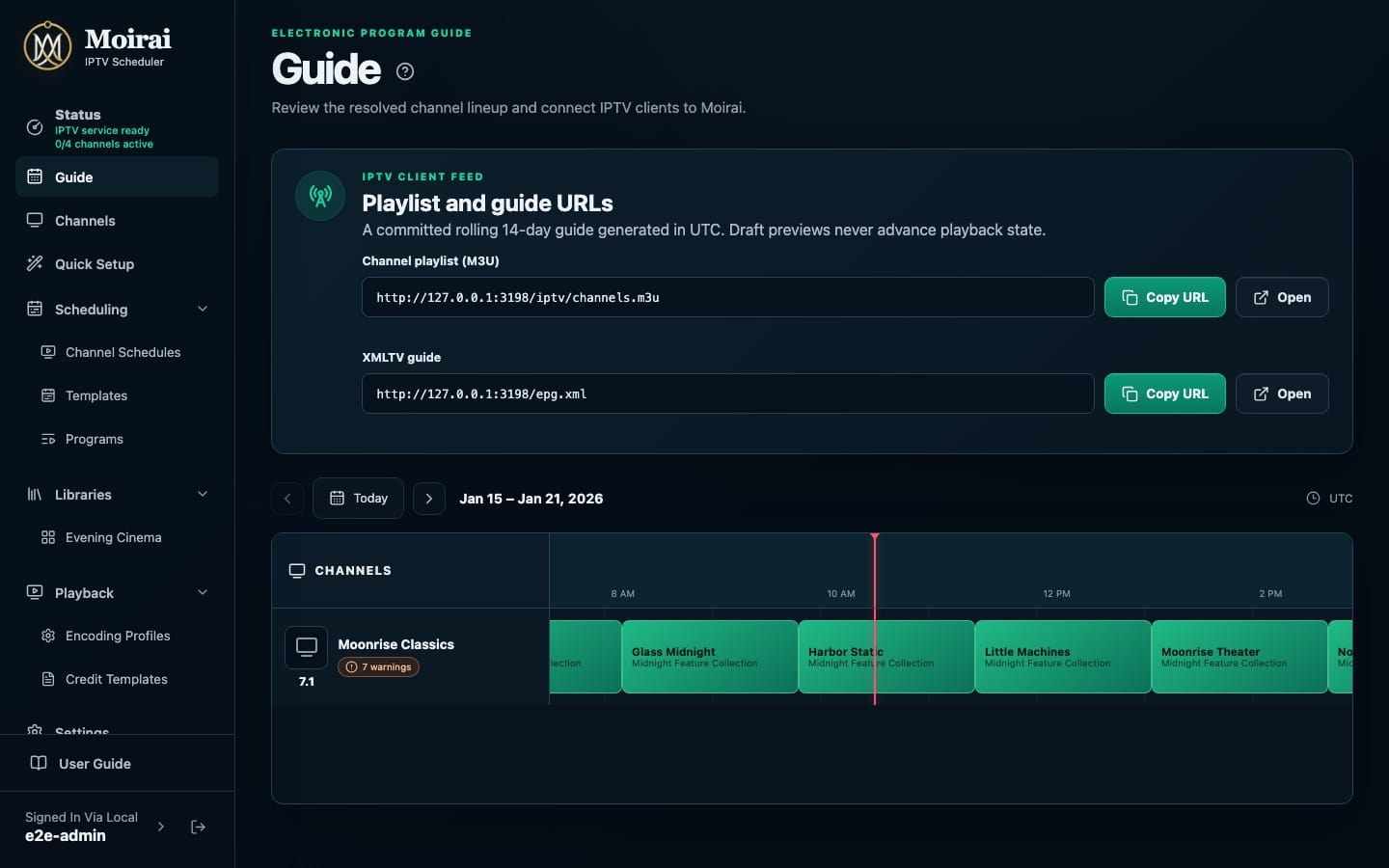
Once your channel has a working schedule, the Guide page provides two addresses for your player:
- The M3U playlist tells the player which channels are available and where to watch them.
- The XMLTV guide supplies the listings: what's playing and when.
Those names describe file formats. In practice, setup usually means copying the addresses into the corresponding fields in a compatible IPTV app. Some players can discover the guide address from the playlist itself.
Use the addresses from your own installation. Your Moirai address needs to be reachable from the device where you're watching, whether that’s an IP address on your network or a domain name you own.
Give It a Try
Moirai and ErsatzTV Next are in early development, so expect changes and bugs. This is a project for someone comfortable running a home-server application and doing some troubleshooting along the way.
Docker, a tool for running applications in containers, is the project's simplest installation route. The supplied image includes the playback engine and media tools, and currently targets Linux on Intel/AMD 64-bit systems. Playback hardware also matters: converting video can be demanding, and supported graphics hardware can reduce the work the CPU has to do. The project README contains installation instructions.

Version 0.1.0

One access detail is worth knowing as you set it up: signing in protects Moirai's administration pages. The playback addresses themselves are accessible to anyone who can reach them, so keep access to the server limited to the network or viewers you intend.
Inside Moirai, User Guide opens the documentation, including the first-channel walkthrough. The question-mark button beside a page title opens help for that page.
Start with a small collection and one channel. Get it playing, live with its choices for a while, and adjust the schedule when you find yourself wanting a different mix.
The best part is what happens next: you turn on a channel, something from your own collection is already on, and you can simply kick back and watch. The evening can start with watching instead of choosing.